Application Interface
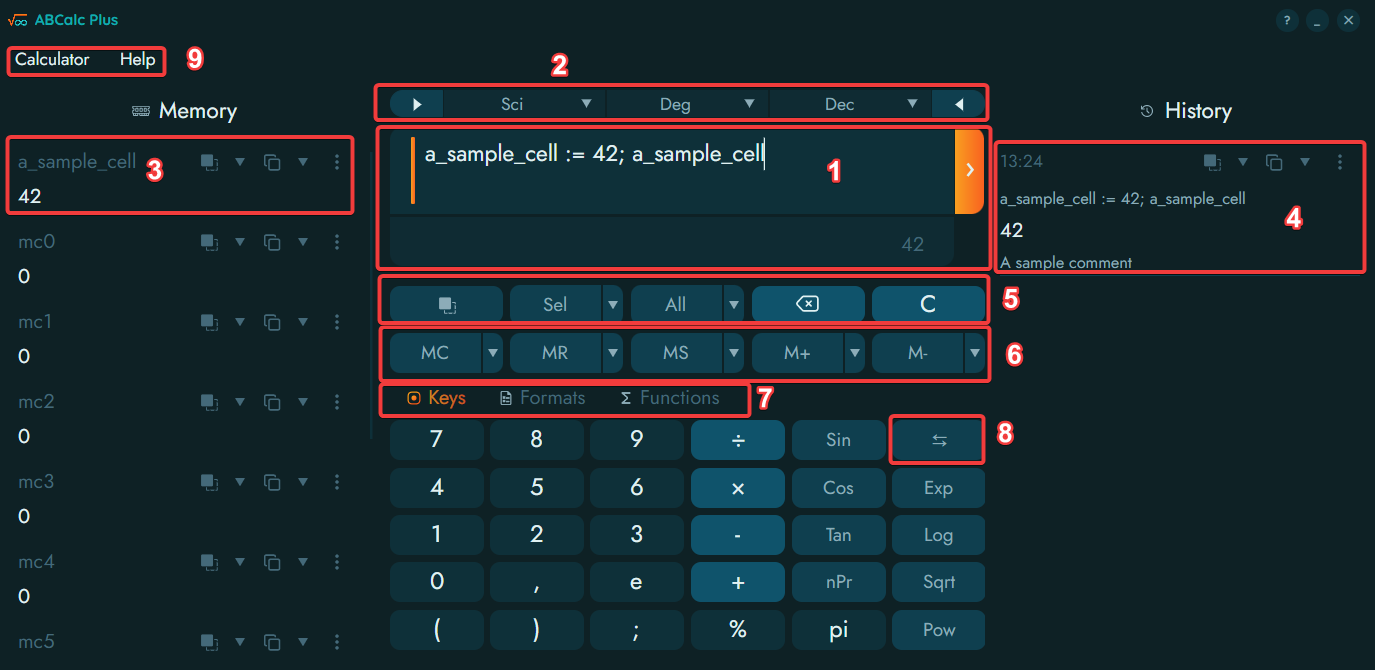
1. Expression editor
This is the central place where you enter expressions and evaluate them using the right-side button. The editor can work in single-line (for simpler expressions) and multi-line modes; they are selected by specifying the number of editor rows in the settings. In the single-line mode, the editor can scroll horizontally. In the multi-line mode, the editor is not limited to the visible rows and supports vertical scrolling.
In the settings, you can customize a number of options that make work with complex expressions more convenient.
The box under the main expression editor is the Result Box; it can be hidden or shown via the settings.
2. Top button row
The top button row contains
- arrow buttons to show/hide the side panels;
- the button for switching the keyboard layout ("Sci" for "Scientific" on the screenshot)
- the button to switch between radians and degrees in calls of trigonometric functions ("Deg" for "Degrees" on the screenshot).
- the button for the format of numeric results ("Dec" for "Decimal" on the screenshot)
3. Memory
The side panel with memory is present in Windows, Linux, and macOS applications; in mobile versions, it appears as a tab (7) in the central/bottom part of the main view). Additionally, Memory and History side panels can be disabled via settings, in which case they also appear as tabs at the bottom of the main view. Finally, you can hide the panels individually using the arrow buttons in the top row (2).
Each Memory item consists of the memory cell name (variable name, on the screenshot it is "a_sample_cell"), current value ("42" on the screenshot), and control buttons that let you insert the name or the value into an expression (1), copy the name or the value to Clipboard, or take other actions.
Double-clicking on the name or the value will insert this name or value into the expression in the expression editor.
4. History
History keeps the history of calculations. Tracking of history within a sessions and saving it between sessions are optional and can be disabled in the settings. Each history item contains the date and time of the calculation, the expression used in the calculation, the result in the format used to represent the result during the calculation, an optional comment, and control buttons that let you insert the expression or the value into an expression (1), copy the expression or the value to Clipboard, and take other actions. The exact way a result is shown in History is determined during the calculation.
Entries in the History can be deleted individually via the "Other Actions" menu of an entry, or you can clear History completely in the settings.
Double-clicking on the expression or the result will insert this expression or result into the expression in the expression editor.
5. Command Buttons row
The row consists of the following buttons:
- Paste - you can paste the contents of Clipboard into the expression.
- Copy - in the dropdown menu, you can select whether you want to copy the selected text, the complete expression, or the result. Once you choose the command in the menu, it is executed (the text is copied) and also, it is remembered. So, when you click the button itself, this command is executed without you visiting the dropdown menu.
- Automatic copy - Automatic copying of the result or the complete text (expression + result) can be enabled by pressing the button. What is to be copied automatically is chosen via the dropdown menu.
- Backspace button is used to delete the character left to the caret in the expression editor (1).
- Clear button is used to delete the complete expression. It can be invoked using the keyboard as well (Ctrl-Shift-Del on Windows and Linux, Opt-Shift-Del on macOS).
6. Memory Buttons row
These buttons are used to manipulate the memory cells mc0 to mc9. The buttons are
- MC - "Memory Clear". Clears the memory cell.
- MR - "Memory Read". Inserts the value of the memory cell into the expression at the caret position.
- MS - "Memory Store". Stores the last calculated value in the memory cell.
- M+ - "Memory Add". Adds the last calculated value to the value in the memory cell. This works only when both values are numbers.
- M- - "Memory Subtract". Subtracts the last calculated value from the value in the memory cell. This works only when both values are numbers.
This row of buttons can be disabled in the settings. When it is disabled, you still can use the Memory panel to access and manage memory cells.
7. Panel tabs
The tabs let you switch between the following panels:
- Keypad - the keys you can use for touch or mouse input.
- Formats - the panel with numeric results presented in different formats. You can choose the format to be signed or unsigned 1-, 2-, 4-, or 8-byte integer, and you can see the result in decimal, hexadecimal, octal, and binary formats.
- Memory - When side panels are disabled or on mobile devices, shows the contents of calculator memory.
- History - When side panels are disabled or on mobile devices, shows the history of calculations.
- Functions - The list of functions known to ABCalc. In ABCalc Plus, custom functions that you create are also listed here. The list supports search/filtering by substring. Double-clicking on the function name will insert the function call into the expression in the expression editor. Double-clicking on the function description will open the detailed description of the function. The function list can be hidden via the settings.
8. Inversion button
This button switches the payload of some function buttons, letting you insert additional functions.
9. Main menu
The main menu exists in Windows, Linux, and macOS applications, but is visible at this location only in Windows and Linux. The main menu can be disabled in the settings. When it is disabled, the Settings button appears in the top row (2).