Application Settings
Some of the application settings displayed below are available only in the desktop version of the application.
General Settings
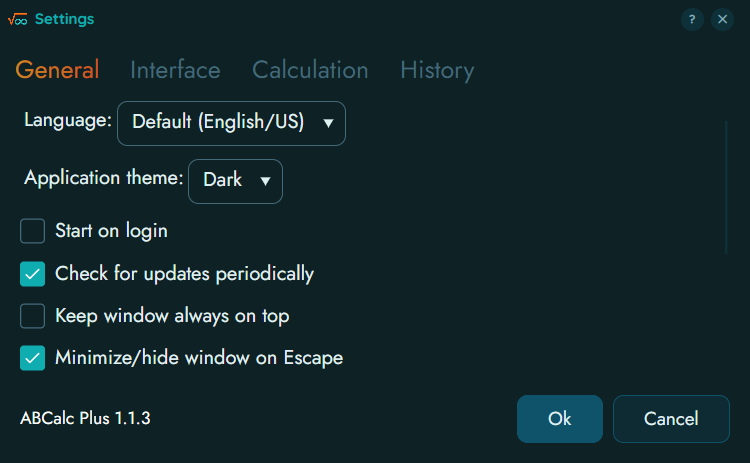
- Language - enables you to switch the interface language. The language also has effect on parsing of humane dates and time periods and on rendering of results in some functions (such as
WeekDay()or humane time period formatting). - Theme (Plus version only) - enables you to switch the interface appearance. In the regular version, the interface follows the Dark Mode settings of the system.
- Start on login (desktop systems only) - when the option is set, ABCalc will run automatically when the system session starts.
- Check for updates periodically (desktop systems only) - when the option is set, ABCalc will check for the availability of a new version of the application on the site. The check is performed when the application is started, and after that, once a day when you perform a calculation. You can force a check using the corresponding button in the About box.
- Keep window always on top (desktop systems only) - a handy option to keep the calculator on top to avoid extra clicks when you switch between the applications multiple times.
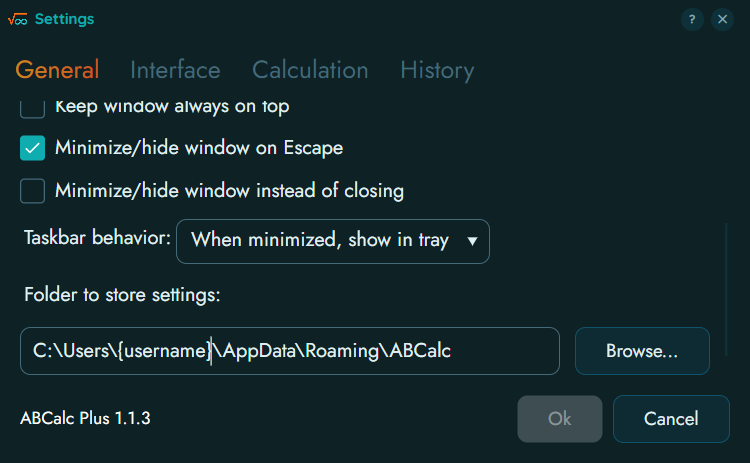
- Minimize/hide window instead of closing (Windows and Linux only) - when the option is enabled, you should use the menu command to quit the application, whereas closing the main window minimizes it instead. This option is recommended to ensure faster access to ABCalc when it is needed.
- Folder to store settings (Desktop, Plus version only) - this setting enables you to store the settings and history in a specific folder which is synchronized with the cloud server of your choice.
Interface Settings
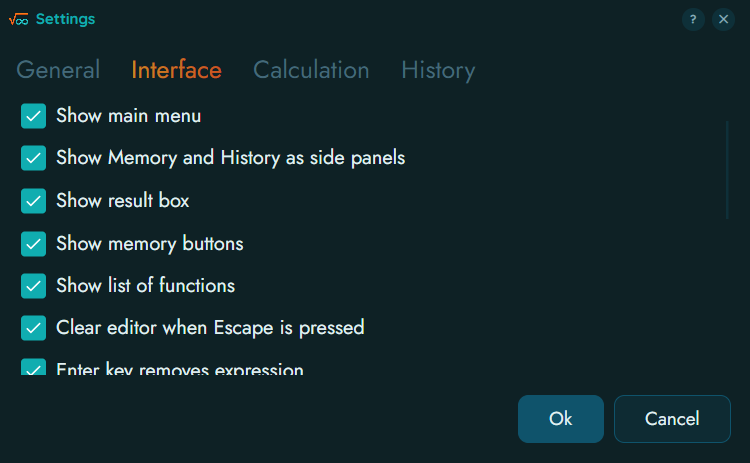
- Show main menu (Windows and Linux only) - shows or hides the main menu. When the main menu is hidden, the Settings button appears in the top row of buttons in the main view.
- Show Memory and History as side panels (desktop systems only) - when the option is enabled, Memory and History are shown on the sides of the main view and can be hidden using the arrow buttons in the top row. When the option is disabled, Memory and History are shown as tabs in the main view. On mobiles, Memory and History are always shown as tabs in the main view.
- Show result box - shows or hides the result box (the one below the main expression editor). The result box shows the result of the calculation; this can be an intermediate result when its calculation is enabled (see the option below) or the previous executed calculation, when intermediate results are disabled.
- Show memory buttons - shows or hides the row of buttons for memory operations.
- Show list of functions - shows or hides the tab with the function list in the main view.
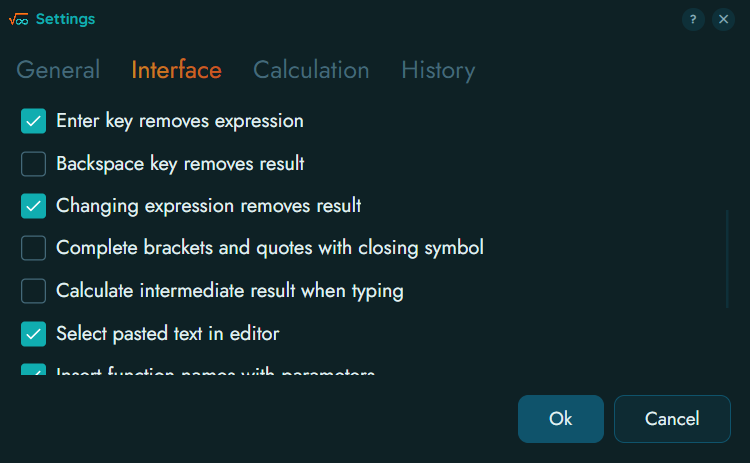
- Complete brackets and quotes with closing symbol - when this option is enabled, and you type one of the characters ` (back quote),
',",(,{,[,#, the closing symbol ` (back quote),',",),},],#is inserted. If you have some text selected, the symbols wrap the selection. - Calculate intermediate result when typing - makes sense when the result box is shown. When the option is enabled, the result is calculated while you are editing the expression and is displayed in the result box. This result does not get into History; also, if your expression modifies memory cells (variables), calculating an intermediate result does not affect Memory (a separate set of memory cells is used for intermediate calculations). For this setting to be useful, the result box should not be hidden.
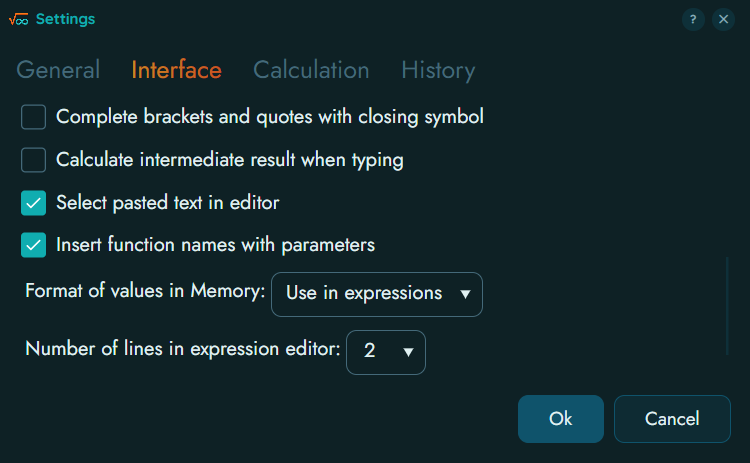
Insert function names with parameters - when this option is enabled, inserting a function from a function list inserts the function name and its parameters to the editor. When the option is disabled, only the function name is inserted. This option does not affect insertion of a function name via the keypad.
Format of values in Memory specifies in which format the Memory values are displayed. Note that when you copy or insert the value, the most appropriate format is used regardless of this option.
Calculation Settings
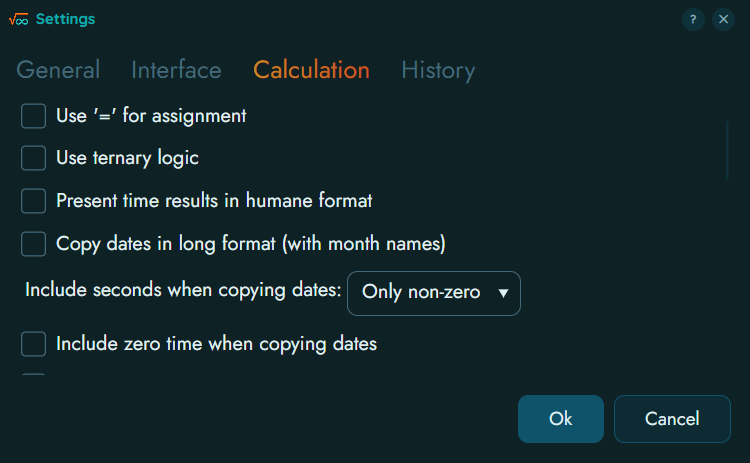
Use '=' for assignment - when this option is enabled,
=is used for assignment of values to memory cells (variables) and==is used for an equality operator. When the option is disabled (default),:=is used for assignment, while=and==are used for an equality operator.Use ternary logic - when the option is disabled (default), if an operand in a logical operation (and, or, xor, not) is
null, the result of the operation isnull, and if an operand is not a boolean (trueorfalse), an error occurs. When ternary logic is enabled,nullor a value that is not a boolean (trueorfalse) stands forUndefinedin the Kleene’s Strong Three-Valued Logic system, and logic operations are performed using this system.Present time results in humane format - this option applies to time periods and specifies that a result should be formatted as "5 days 3 hours 2 minutes 30 seconds" instead of "5.03:02:30".
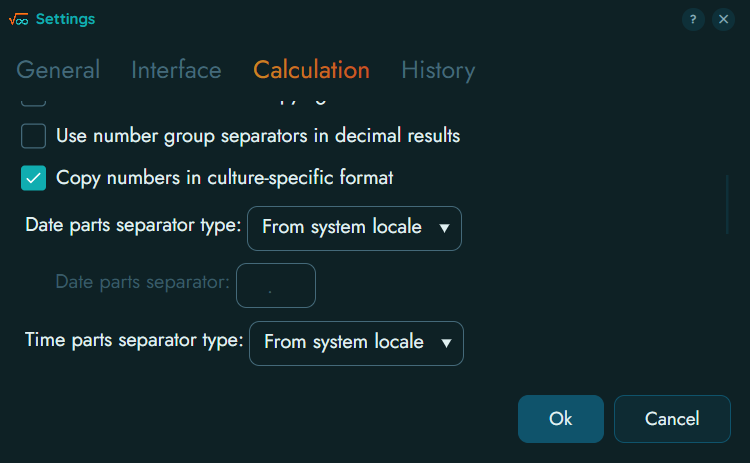
- Use number group separators in decimal results - specifies whether number group separators (those that split groups of three digits) should be inserted into numbers.
- Copy numbers in culture-specific format - when the option is enabled, system regional / culture settings are used to format numbers when they are copied to Clipboard. This includes the use of decimal and number group separators as well as placing of the "minus" sign.
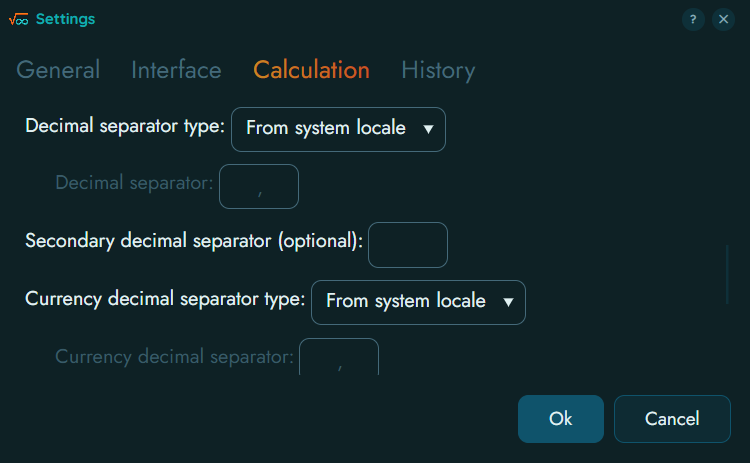
Various separator settings - separators in numbers, dates, and times can be fixed, be taken from system regional settings / culture info / locale, or be custom (specified by you). Note that in the Programmer's layout, decimal separator is always fixed to be
.(dot).Secondary decimal separator - lets you specify the second decimal separator, complement to the main one. These are usually
,and.or vice versa, as used in Europe and other parts of the world.
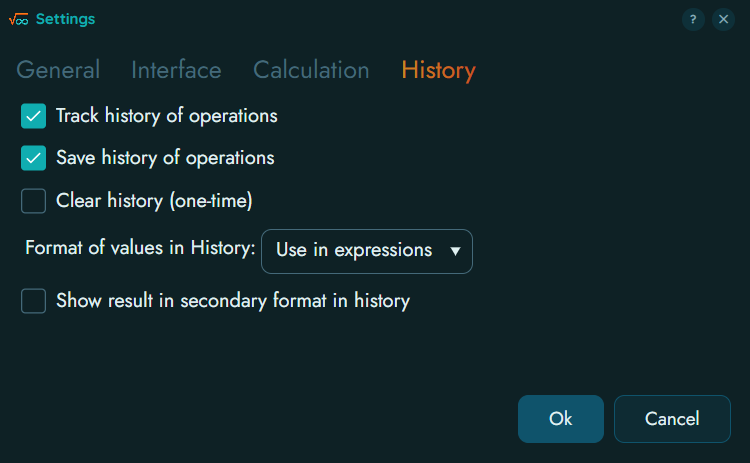
- Track history of operations - when the option is set, and you calculate something, the expression and the result are stored in History. When the option is not set, History is not kept.
- Save history of operations - when the option is set, any update in the history is saved to a file. If you clear the option, the history will stay until the application is closed.
- Clear history - set this option to clear all history after you close the Settings view. This operation removes all history entries but does not disable tracking or saving the history further.
- Format of values in History specifies in which format results are displayed in the History. Note that when you copy or insert the result, the most appropriate format is used regardless of this option.
- Show result in secondary format in History - for results that are integer numbers, enables the display of results in a secondary format. If the main result format (the one selected in the main view) is decimal, the secondary format is hexadecimal. If the main result format is anything but decimal, the secondary format is decimal.
Note: Results are stored in History in pre-formatted form, so changes in the format affect only consequent calculations but not previously stored history entries.